
ESP32 - Complex Waveform Generator V3
Installing and Using the ESP32 Complex Waveform Generator V3 Application
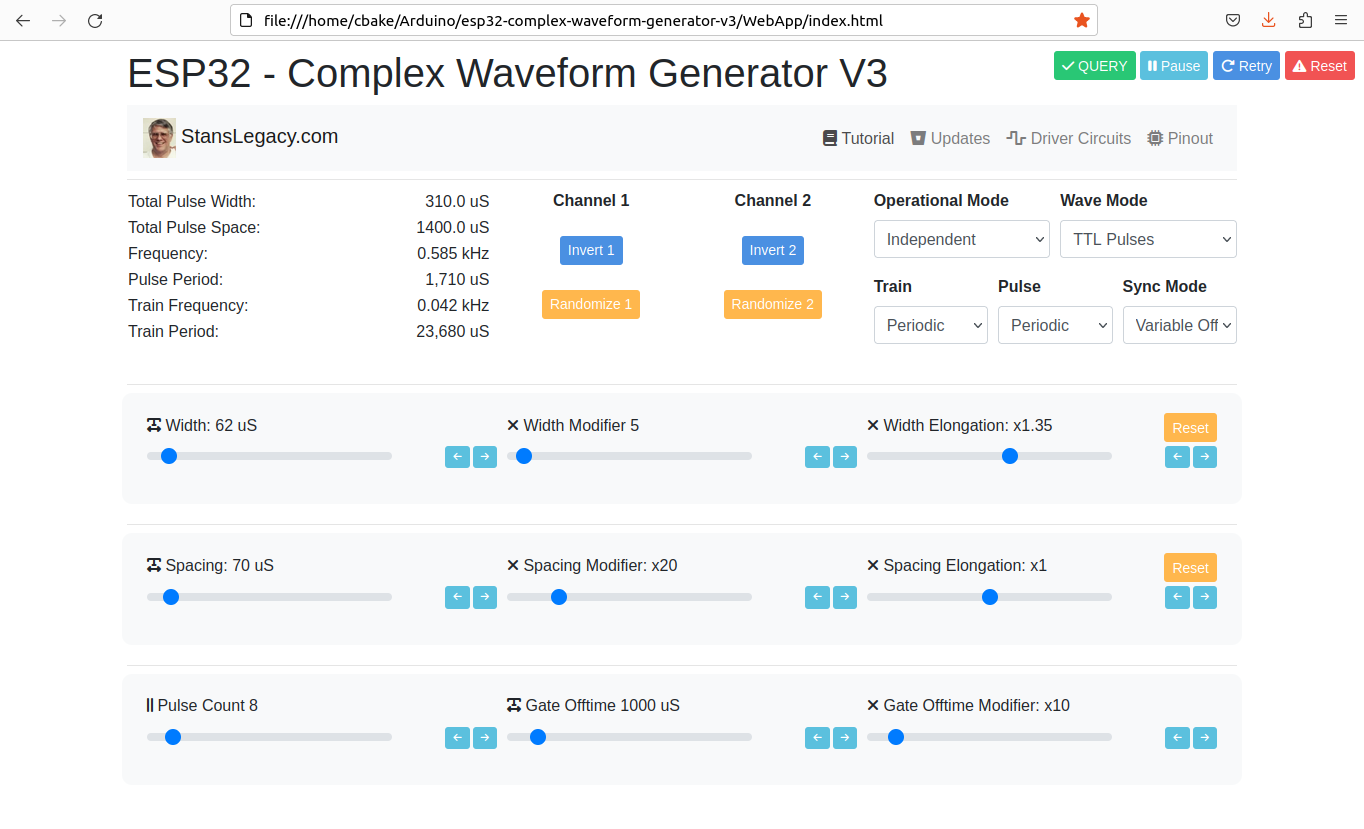
Screenshot of web interface
Prerequisites
To use this application, you need to have the Arduino IDE installed on your computer. You can download the Arduino IDE from the official website: https://www.arduino.cc/en/software
-
ESP32 Development Board: You'll need an ESP32 development board, such as the popular ESP32-DevKitC or ESP32-WROOM-32D. These boards typically come with Wi-Fi and Bluetooth capabilities and a variety of GPIO pins for interfacing with peripherals.
-
Rotary Encoders: To adjust the waveform parameters, you will need a total of 7 rotary encoders. You can use KY-040 rotary encoder modules or any other type of incremental rotary encoder with built-in push buttons. Ensure that the rotary encoders you choose have a CLK, DT, and SW (push button) pinout.
-
Breadboard and Jumper Wires: A breadboard and jumper wires are required to make the necessary connections between the ESP32 development board and the rotary encoders.
- Power Supply: You will need a power supply to power the ESP32 development board. This can be a USB power supply, a battery, or any other suitable power source that meets the board's voltage and current requirements.
-
Oscilloscope (optional): To visualize the generated waveform, you can use an oscilloscope. Connect the output pins (channel1OutputPin and channel2OutputPin) from the ESP32 development board to the oscilloscope's input channels.
Installing required libraries
-
ArduinoJson: To install the ArduinoJson library, follow these steps: a. Open the Arduino IDE. b. Click on
Toolsin the menu bar, thenManage Libraries. c. In the Library Manager window, search for "ArduinoJson" in the search bar. d. Find "ArduinoJson by Benoit Blanchon" in the search results and click on theInstallbutton. -
ESP32Encoder: To install the ESP32Encoder library, follow these steps: a. Open the Arduino IDE. b. Click on
Toolsin the menu bar, thenManage Libraries. c. In the Library Manager window, search for "ESP32Encoder" in the search bar. d. Find "ESP32Encoder by Gil Mora" in the search results and click on theInstallbutton.
Uploading the Application
- Download the source code for the ESP32 Complex Waveform Generator V3 application or copy it to a new file in the Arduino IDE.
- Connect the ESP32 development board to your computer using a USB cable.
- In the Arduino IDE, select the appropriate board and port under
Tools>BoardandTools>Port. - Click on the
Uploadbutton (right-facing arrow icon) in the Arduino IDE to compile and upload the application to the ESP32 development board.
Hardware Setup
- Wire the rotary encoders and other components according to the pin assignments defined in the source code.
- Make sure the connections are secure and verify the CLK/DT pins for each encoder are wired correctly.
Using the Application
- Power on the ESP32 development board.
- Use the rotary encoders to adjust the following parameters:
- Pulse count
- Pulse width
- Pulse spacing
- Off-time
- Width modifier
- Spacing modifier
- Off-time modifier
- The application will generate a complex waveform based on the adjusted parameters.
- Connect the output pins (channel1OutputPin and channel2OutputPin) to an oscilloscope to visualize the generated waveform.
- Fine-tune the parameters using the rotary encoders to achieve the desired waveform shape and characteristics.
Troubleshooting
- If the waveform does not match the expected output, verify the wiring connections and ensure the rotary encoders are functioning correctly.
- If the application does not upload to the ESP32 development board, double-check the board and port selection in the Arduino IDE.
- If the rotary encoders behave unexpectedly (e.g., adjusting one parameter affects another), check the CLK/DT pin assignments and wiring.
For further assistance or to report any issues, contact the application's support team or refer to the community forums.